Use cases
Seqera Cloud users receive $20 in free credits to get started with Seqera AI. Contact us for additional credits.
Seqera AI is an intelligent command-line assistant that helps you build, run, and manage bioinformatics workflows. The following sections describe several common use cases.
Work with Nextflow
Seqera AI helps you develop, debug, and understand Nextflow pipelines with AI-powered analysis and code generation.
Working with Nextflow
Understand your pipeline structure:
> Show me the structure of main.nf
> What processes are defined in this pipeline?
> /nf-pipeline-structure
Use /nextflow-config to generate and explain Nextflow configuration files:
> /nextflow-config
Debug your pipeline:
> /debug
> Why is my pipeline failing?
Review local execution history:
> /nf-run-history
Trace output provenance with data lineage:
> /nf-data-lineage
Use /nextflow-schema to generate nextflow_schema.json and sample sheet schema files:
> /nextflow-schema
Convert scripts to Nextflow:
> /convert-python-script
Fix strict syntax issues:
> /fix-strict-syntax
Migrate old schema definitions:
> /nf-schema-migration
Work with Seqera Platform
Use Seqera Platform capabilities to run and manage workflows at scale with AI assistance.
Working with Seqera Platform
List your workflows:
> List my recent workflows
Launch a pipeline:
> Launch the nf-core/rnaseq pipeline with the test profile
Debug failed runs:
> Why did my last workflow fail?
> Get the logs for the failed task in my last run
Build containers with Wave
Seqera AI can create containerized environments using Wave, without the need to write Dockerfiles.
Building containers with Wave
Create a container with conda packages:
> Create a container with samtools and bwa from bioconda
Create a container with pip packages:
> Build a container with pandas, numpy, and scikit-learn
Get a container for a specific tool:
> I need a container with FastQC version 0.12.1
The assistant will generate a Wave container URL that you can use directly in your Nextflow pipelines or pull with Docker.
Customize your session
Customize your session with command-line options.
Customize your session
Start with an initial query:
seqera ai "list my pipelines"
Continue your last session:
seqera ai -c
Resume a specific session:
seqera ai -s <session-id>
Set approval mode for local commands:
seqera ai --approval-mode full
Switch between build mode and plan mode:
- Press
Shift+Tabin the composer - Check the current mode in the composer footer
- Use
/statusif you want a full status readout
Inspect available built-in commands and skills:
/help
Plan work before you edit
Use plan mode when you want analysis and a concrete implementation plan before making changes.
Planning in plan mode
Compare implementation strategies:
> Compare whether I should add FastQC or fastp as the first QC step in this RNA-seq pipeline, including the workflow changes each option would require
Ask for a step-by-step rollout plan:
> Plan the work to add GPU support to this pipeline
Review a codebase without modifying it:
> Inspect this repository and outline the changes needed for Seqera Platform deployment
Plan mode is designed for read-only analysis. To execute commands, edit files, or write code, switch back to build mode with Shift+Tab.
Use goal mode for longer tasks
Use goal mode when you want Seqera AI to keep working toward a task over multiple model attempts.
Working in goal mode
Start a persistent task:
/goal migrate this pipeline to DSL2 and add nf-tests
Check the active goal:
/goal
Disable goal mode:
/goal off
Goal mode automatically switches command approval to full so the assistant can keep making progress. See Command approval for details.
Exit the assistant
End your Seqera AI session when done.
Exit the assistant
To end your session:
- Type
/exit,/quit, or/q - Press
Ctrl+C
Your conversation history is preserved. You can resume a session later with seqera ai -c to continue your most recent session.
Use slash commands
Seqera AI includes built-in slash commands for common workflows.
TUI commands
These commands are handled locally by the CLI:
| Command | Description |
|---|---|
/help | Show available commands |
/exit (/quit, /q) | Exit the application |
/clear | Clear conversation history |
/thinking | Toggle thinking display |
/scroll | Toggle auto-scroll |
/org | Show current organization |
/lsp | Show LSP server status |
/status | Show system status |
/credits | Show credit balance and usage |
/approval | Show or set approval mode |
/feedback | Open feedback form |
/help-community | Open community help |
/stickers | Get Seqera stickers |
AI commands
These commands are sent to the AI backend for processing:
| Command | Description |
|---|---|
/help | Show available commands and skills |
/status | Show current mode, LSP, organization, and session status |
/sessions | Browse and switch sessions |
/goal | Set, inspect, or disable a persistent goal |
/credits | Show monthly credit balance and usage |
/update | Check for CLI updates |
/nextflow-config | Generate and explain Nextflow configuration files |
/nextflow-schema | Generate nextflow_schema.json and sample sheet schema files |
/debug | Run nextflow lint and preview |
/debug-local-run | Debug a local Nextflow pipeline run |
/debug-last-run-on-seqera | Debug the last Platform run |
/migrate-from-wdl | Convert WDL to Nextflow |
/convert-python-script | Convert Python script to Nextflow |
/convert-r-script | Convert R script to Nextflow |
/convert-jupyter-notebook | Convert Jupyter notebook to Nextflow |
/write-nf-test | Write nf-tests for your pipeline |
Skills exposed by your Seqera AI deployment also appear in the / command palette and in /help.
Work with skills
Seqera AI can use reusable skills from your current project, your user profile, and the backend skill catalog exposed by your deployment.
Using skills
Open the command palette:
- Type
/to browse built-in commands and backend skills - Run
/helpto see the same commands in a text list
Use a built-in backend skill:
Examples include:
/fix-strict-syntax/nf-pipeline-structure/nf-run-history/nf-data-lineage/seqera-platform-api/seqerakit
Create a project skill:
Create a SKILL.md file in .agents/skills/ or .seqera/skills/ and restart seqera ai.
Install Seqera AI into coding agents:
seqera skill install
Work with data
Seqera AI helps you manage data through Platform data links and access reference datasets.
Working with data
Browse data links:
> List my data links
> Show me the contents of my S3 data link
Download and upload files:
> Generate a download URL for results/final_report.html
> Upload my local results to the data link
Access reference data:
> Find the human reference genome GRCh38
> Search for RNA-Seq test data
Work with local files
Seqera AI can interact with files in your current working directory.
Work with local files
Start the assistant from your project folder:
cd /path/to/your/project
seqera ai
Then, ask the assistant to help with local tasks:
> Show me the structure of main.nf
> Add a new process to handle quality control
Local file operations are controlled by approval modes. By default, the assistant will ask for your approval before making changes outside your working directory or running potentially dangerous commands.
Work with nf-core modules
Seqera AI provides access to over 1,000 nf-core modules for common bioinformatics tasks.
Working with nf-core modules
Search for modules:
> Find nf-core modules for sequence alignment
> What modules are available for variant calling?
Get module details:
> Show me how to use the nf-core/bwa/mem module
Run a module:
> Run FastQC on my FASTQ files
The assistant can generate the exact Nextflow command with proper parameters for your data.
Work with Seqera Platform
Use Seqera Platform capabilities to run and manage workflows at scale with AI assistance.
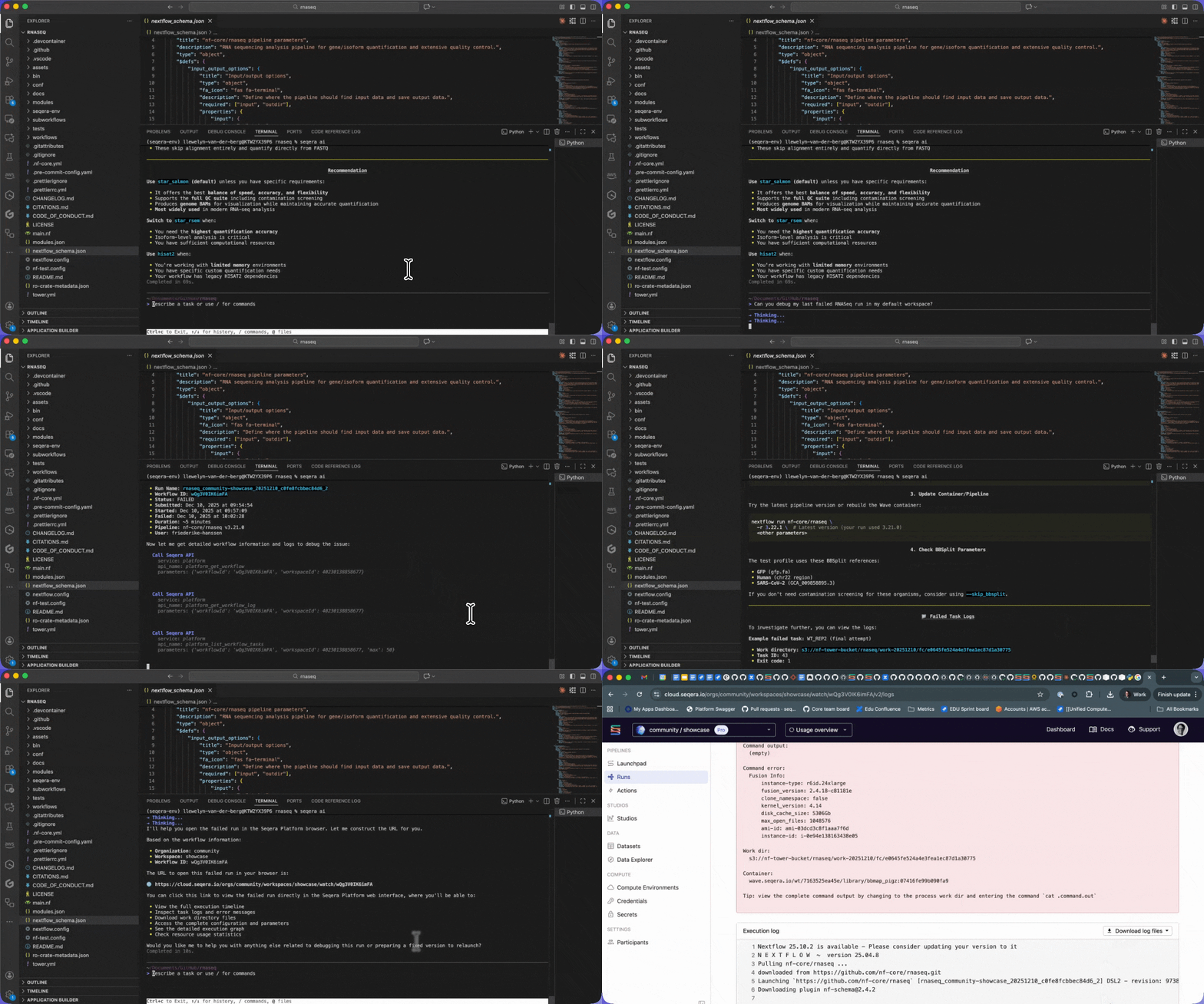
Working with Seqera Platform
List your workflows:
> List my recent workflows
Launch a pipeline:
> Launch the nf-core/rnaseq pipeline with the test profile
Debug failed runs:
> Why did my last workflow fail?
> Get the logs for the failed task in my last run
Headless mode
Run Seqera AI in headless mode for scripting and automation. Output is sent to stdout instead of the interactive TUI.
Headless mode
Run a query and pipe the output:
seqera ai --headless "list my pipelines"
Include thinking messages in the output:
seqera ai --headless --show-thinking "debug my pipeline"
Include tool calls in the output:
seqera ai --headless --show-tools "list my workflows"
Headless mode is also auto-detected when stdout is piped (e.g., seqera ai "query" | grep "result").
Session management
Seqera AI preserves your conversation history across sessions. You can resume previous sessions to continue your work.
Session management
Continue your most recent session:
seqera ai -c
Continue with a follow-up question:
seqera ai -c "now run the pipeline with the test profile"
Resume a specific session by ID:
seqera ai -s <session-id>
f7f424c5 (Update Seqera AI CLI docs: Python CLI to OpenTUI CLI)
Learn more
- Seqera AI CLI: Seqera AI CLI overview
- Installation: Detailed installation instructions
- Authentication: Log in, log out, and session management
- Skills: Discover, create, and install skills
- Modes: Work in build mode, plan mode, and goal mode
- Command approval: Control which commands run automatically
- Troubleshooting: Troubleshoot common errors